Get your next client on autopilot
Inside AI Autopilot Academy you get my 27-day Claude Code mastery program with a 1-click install setup file, so you’re up and running on day one. Plus my GoHighLevel CLI, the Skool Automation MCP and Jarvis +. And you get a proven Claude Code content system to get your next client on autopilot.
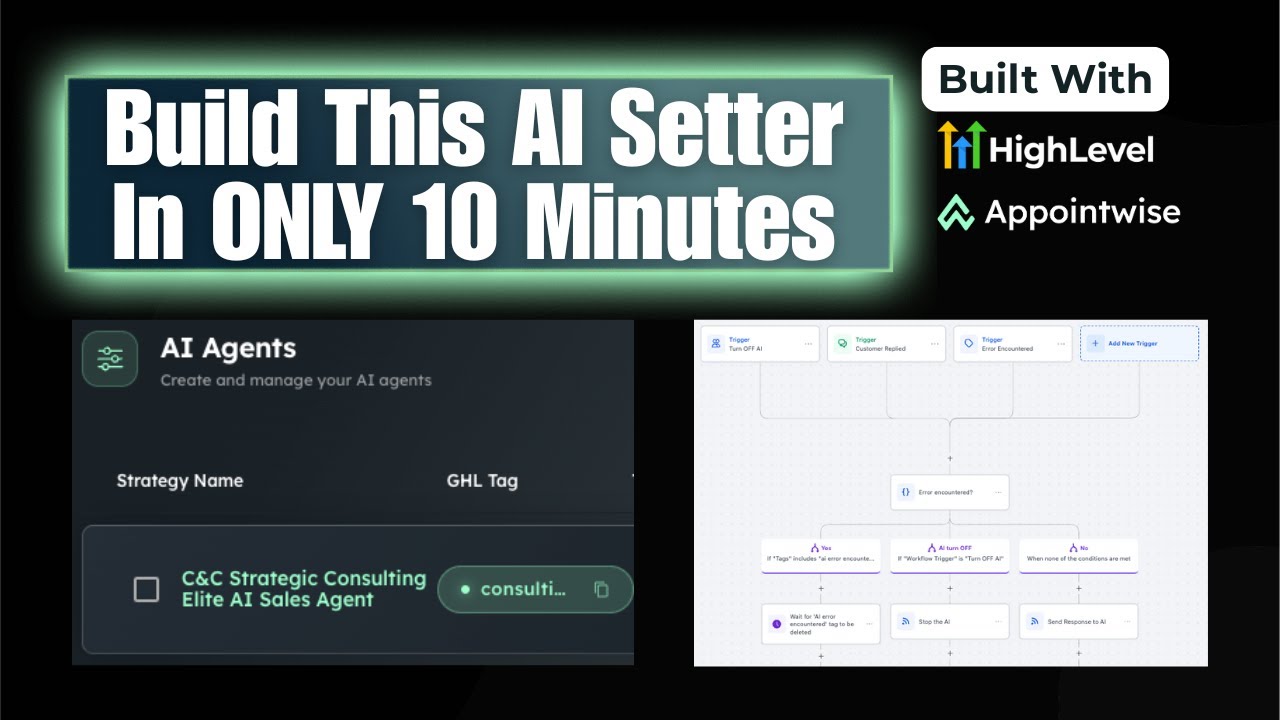
The number one automation every business needs is an instant touch of communication. A lead fills out a form, and within seconds they get a text that talks back. I set up a GoHighLevel AI agent that does exactly that in a little under nine minutes.
I’m Charles J Dove, I run Charlie Automates, and I recorded this setup in November 2025. The screens may have changed, but the build pattern (trigger, qualification, calendar, reminders) still applies to any AI text agent for GoHighLevel.
What Does an AI Text Agent Do for Speed to Lead?
It texts new leads immediately and keeps the conversation going until they book. A simple workflow text just sends one message. This one is interactive, so you don’t have to go back and forth with the prospect yourself. It also has follow-ups, frequency settings and disqualification rules.
How Do You Set Up a GoHighLevel AI Agent?
The agent app builds most of itself from your website. Here is what I did:
- Enter your business name and website. It starts a 14-day trial and connects to your GoHighLevel CRM. It pulled insights from my website, my FAQs and my calendar.
- Tell it about your services and choose a calendar for booking. You can turn the AI off after booking.
- Review the generated agent. It built the name, company information and a prompt for me.
- Add qualification questions in the conversations section. You can also set points that disqualify a lead.
- Set a tag for high-quality leads, which I called HQ.
Why Use Markdown Formatting in the Prompt?
Markdown formatting gives the AI a priority system. Main header, second header and third header tell the bot what matters most, and they make the prompt easier for you to read and adjust.
I took my existing prompts and had ChatGPT restructure them from my company’s information, and asked for the result in a copy-paste code block. The cleaner version went back into the agent.
My settings for the test: a friendly, confident assistant that books appointments, replies limited to 220 characters, no disqualification factors, and a 15-second response delay so it feels more human.
How Do You Build the Knowledge Base?
I dictated my company information, had ChatGPT build it out, and pasted it into the knowledge base. Then I added FAQs based on the ones I already had, each mapped to a custom field.
How Do You Connect It to GoHighLevel?
- In the agent app, click get started, then integrate with GoHighLevel, and copy the snapshot link.
- Paste it into GoHighLevel and confirm the import. Go to your sub-accounts, manage, and import the snapshot, then push it.
- In GoHighLevel’s trigger AI section, copy the API key and add it as a custom value. Do the same with the client ID.
- Click next, connect to GoHighLevel, and choose your sub-account.
- Add a trigger: contact tag added, with the tag you chose. I used “consulting” for the test.
What Happened in the Live Test?
I filled out a form, and the text from the AI agent arrived within seconds. I told it I was having a hard time with follow-ups and my team wasn’t calling my leads. It replied asking what I was tracking leads in and whether follow-ups happened manually between the team and spreadsheets. Then it asked what was breaking most: speed to call, remembering follow-ups, or tracking who did what.
When I said everything was a mess and asked who I could speak to, it offered time slots from the connected calendar. After I picked one, it auto-booked the appointment without any back and forth. If I add qualification points like a minimum monthly revenue, it won’t let unqualified leads book.
After booking, a separate workflow sent the appointment reminders, an admin notification to my phone, and a pre-call page with a video the prospect watches before the first call. Reminders plus a pre-call video are worth building on their own.
For a voice version of this same idea, see my AI voice agent appointment setter demo. New to GoHighLevel? Here’s my GoHighLevel link.
Key Takeaways
- Speed to lead is the first automation every business needs.
- Setup took a little under nine minutes because the agent pulls from your website.
- Use markdown headers in your prompt so the AI knows what matters most.
- A 15-second response delay makes replies feel human.
- Qualification points can block unqualified leads from booking.
- Reminders and a pre-call video run in a separate workflow after the booking.
Where to Go From Here
Get your next client on autopilot.
Join AI Autopilot Academy for my 27-day Claude Code mastery program with a 1-click install setup file, plus a proven Claude Code content system to get your next client on autopilot.
The tools from this walkthrough on charlieautomates.com:
At my agency CC Strategic we build systems like this for business owners, and new builds drop every week on my YouTube channel @charlieautomates.
FAQ
Can an AI text agent book appointments in GoHighLevel? Yes. Connect the agent to a GoHighLevel calendar and it offers open slots and books the appointment automatically.
What triggers the AI text agent? I used a contact tag. When the tag is added to a contact, the trigger fires and the agent texts them.
Why add a response delay? I used 15 seconds so replies feel more human.
How should I format the agent prompt? Use markdown headers (main, second and third level) to set priorities, and have ChatGPT restructure your existing prompts into that format.
Is this walkthrough current? It’s from November 2025, so screens may differ, but the trigger, prompt, calendar and reminder pattern still applies.